Oracle Fusion – Approve Purchase Requisition through Oracle Fusion
Approval is necessary to progress purchase requisitions.
The following steps outline the process to approve/reject or action purchase requisitions
1. Log in to your Oracle Fusion account
2. Select the Bell icon on your homepage to access your notification list
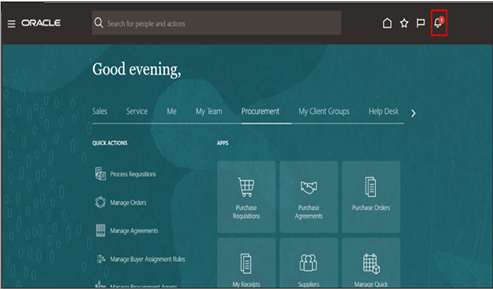
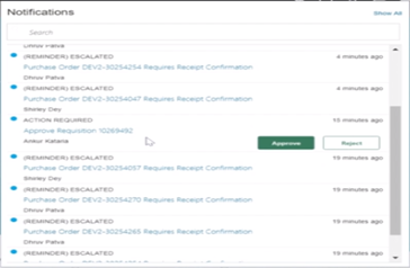
3. Select required notification from notifications list
4. User can directly approve or reject purchase requisition
5. It is good practice to view purchase requisition notification by selecting hyperlink
6. Approval page will be displayed
7. If action is required, select Actions dropdown menu
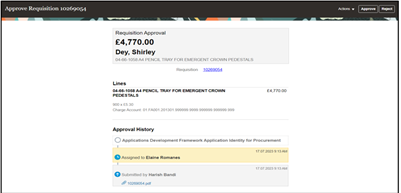
8. Select the appropriate action required
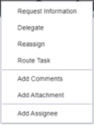
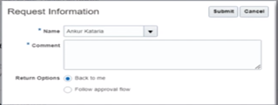
Select Request Information if more information is required from the requestor
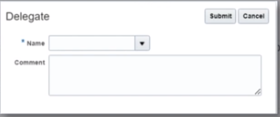
Select Delegate to assign approval to another person
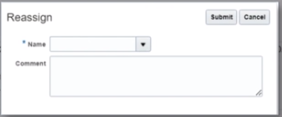
Select Reassign to forward requisition to another requestor
Select Route Task to forward on approval responsibility to another approver or chain of approvers
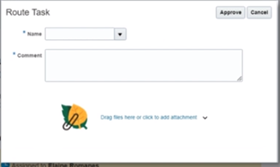
Select Add Comments to respond to the requestor

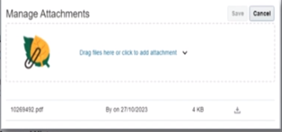
Select Add Attachment to add a document or detailed instructions