
Oracle Fusion - Purchase Order Receipts
Once the supplier has delivered items requested in the purchase order, requisitioners will confirm the quantity received to facilitate payment.
The requisitioner will create a self-service receipt in the system against the order.
The following process outlines the steps required to create a purchase order receipt
1. Login to your Oracle Fusion account
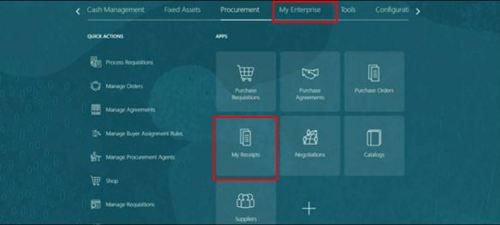
2. Navigate to the Procurement tab
3. Select My Receipts – Your homepage may be different depending on permissions
4. Enter information to search for purchase order
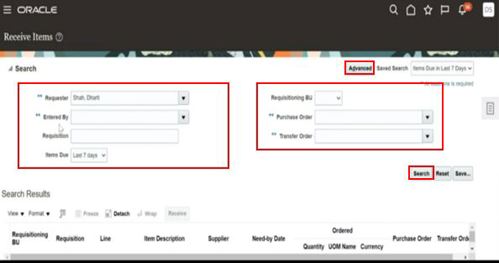
5. Select Search
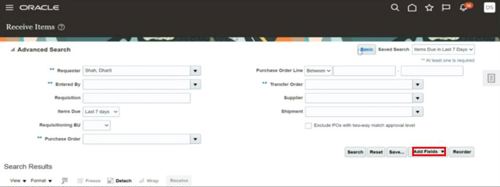
6. Select Advanced to add extra search fields if required and select search
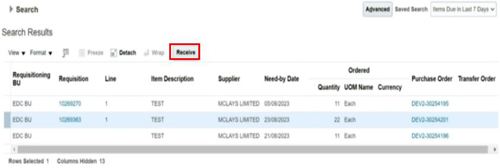
7. All search results are displayed
8. Select line to receipt
9. Click Receive
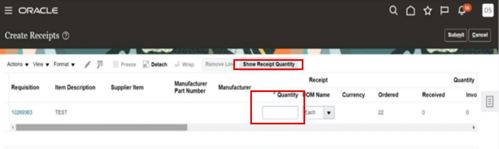
10. Enter quantity received or click on Show Receipt Quantity to see expected quantity
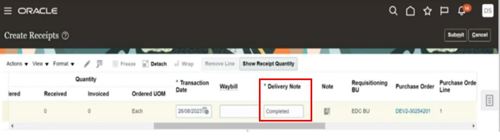
11. Enter delivery note details
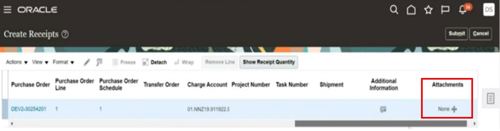
12. Add any attachments if required
13. Select Submit
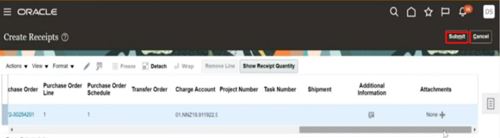
14. Confirmation is displayed
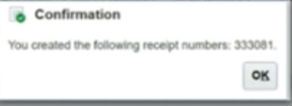
15. Select OK